Dock Previews
Hover. Peek. Switch.
Live previews of every open window appear the moment you hover. Click to focus, middle‑click to close, or use intuitive controls without ever leaving your current app.
Window peeking, Alt+Tab switching, custom Docks, calendar previews and dozens of power features — all native, all private, all free.
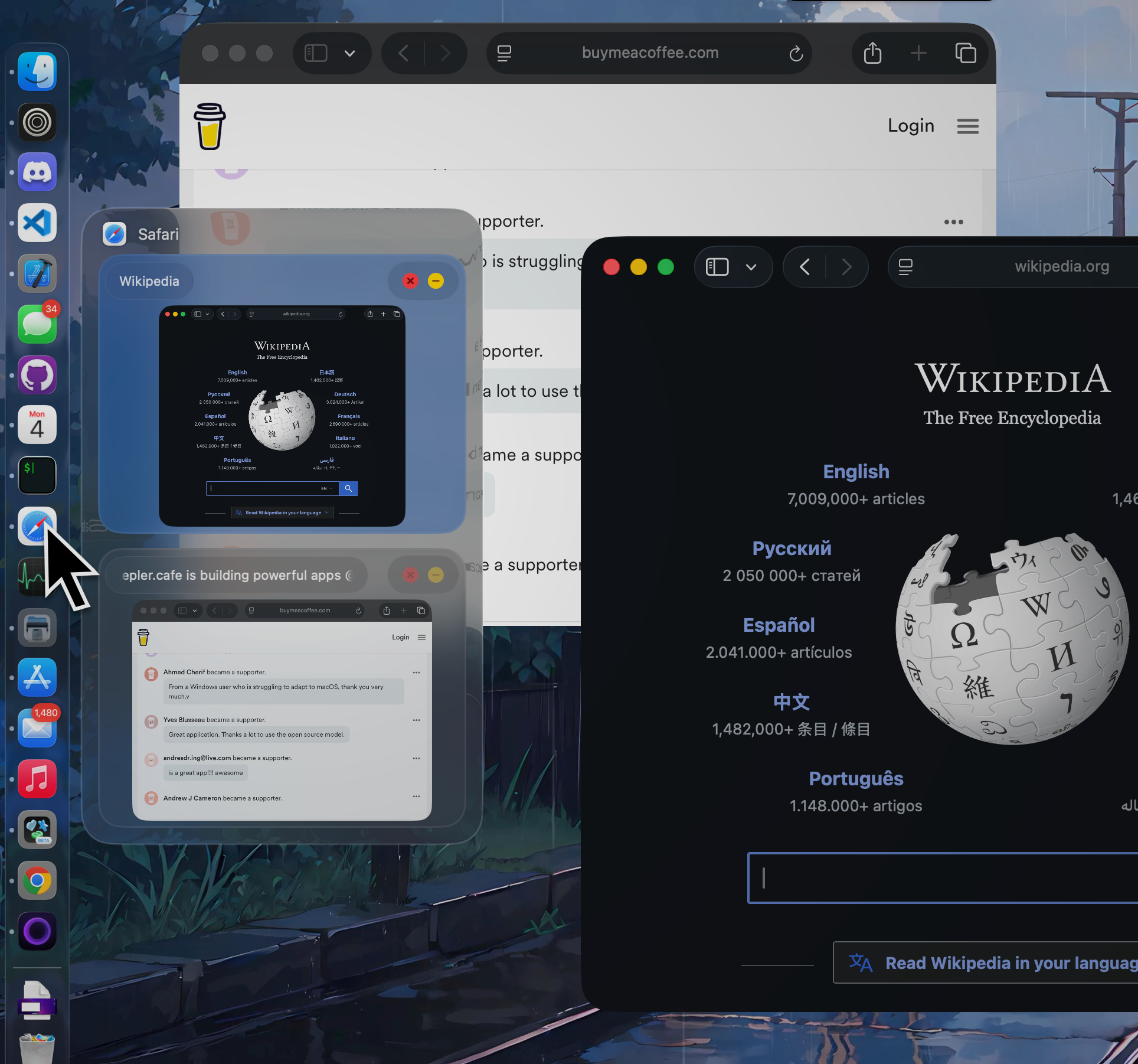
AwesomeDock starts with the features you'd expect from a great Dock — then keeps going.
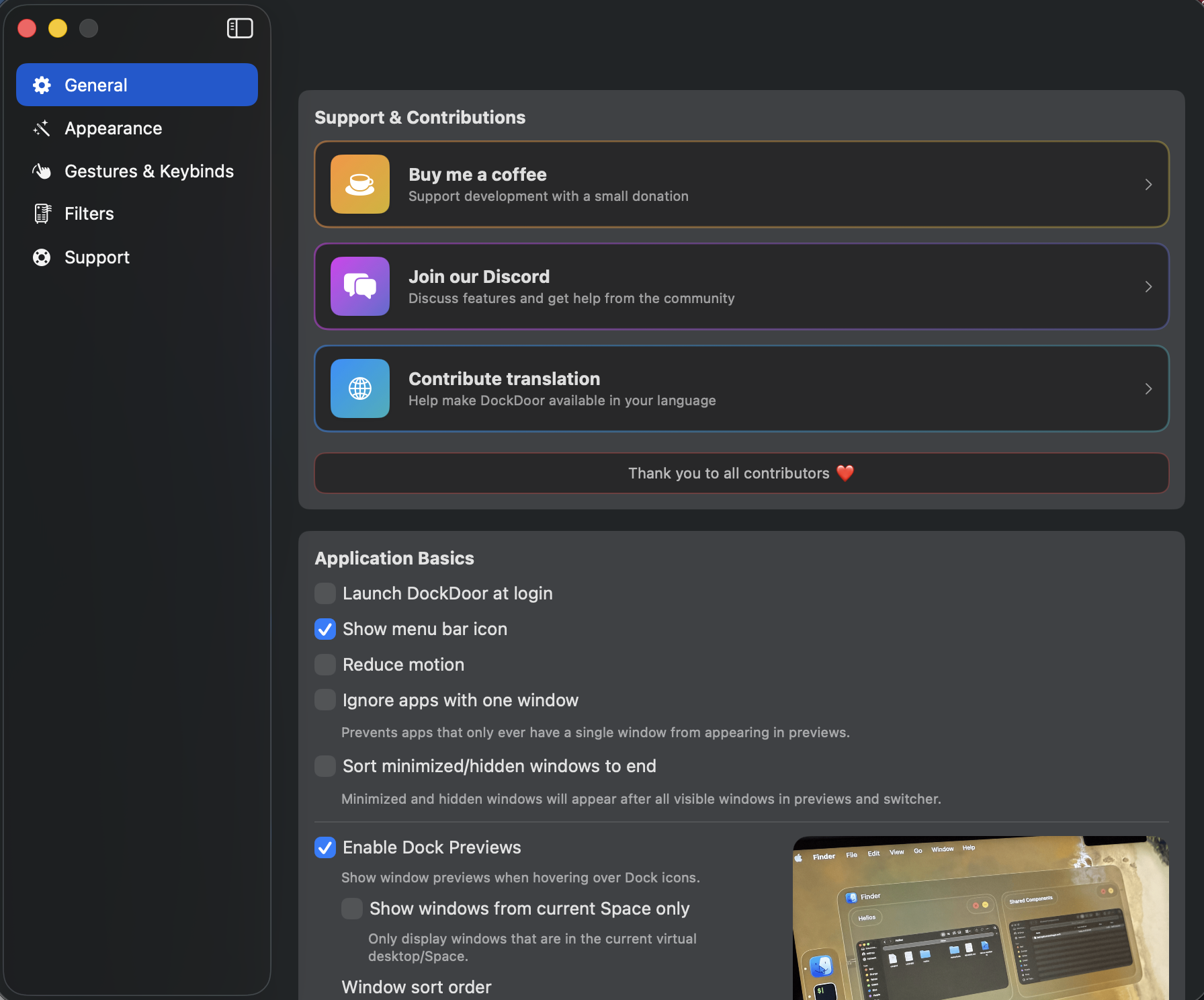
Live previews of every open window appear the moment you hover. Click to focus, middle‑click to close, or use intuitive controls without ever leaving your current app.
Press ⌥Tab for a window‑based switcher with live thumbnails. Familiar muscle memory, beautiful execution.
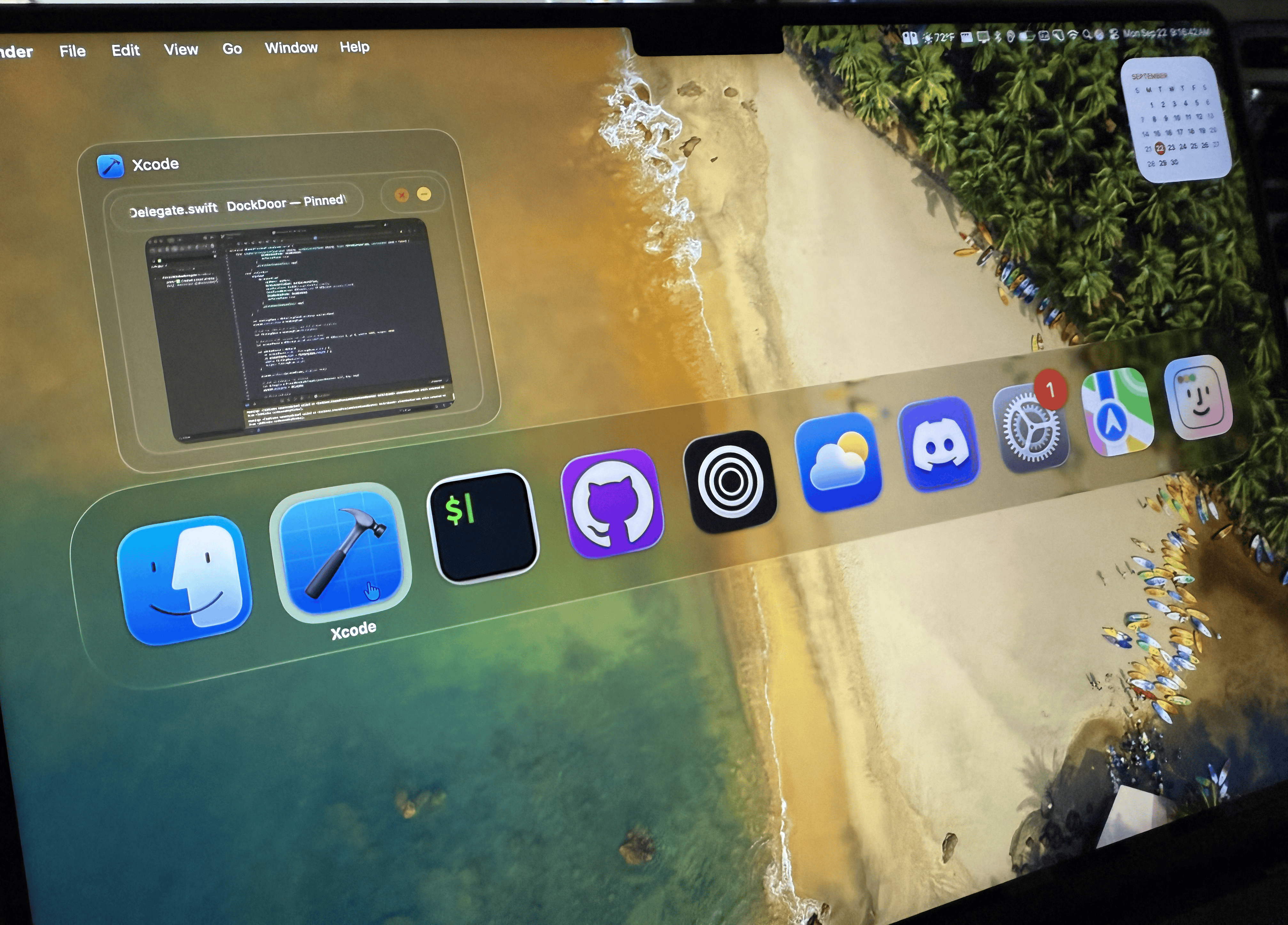
Keep the muscle memory you already have. AwesomeDock layers richer previews and smoother navigation onto the system switcher.
Create as many Docks as you need — per‑monitor, per‑workspace, or per‑mood. Pin apps, files, folders, and actions side by side.
Let a custom Dock collapse into a compact rail beside Stage Manager — or expand into a full launcher when you need it. Different Mac, same flow.
Group apps into folders right in your Dock. Reorder by drag, see notification badges, peek inside on hover.
Run shell scripts, open URLs, trigger shortcuts, or chain workflows — all from a Dock tile. Drop actions inside folders to keep things tidy.
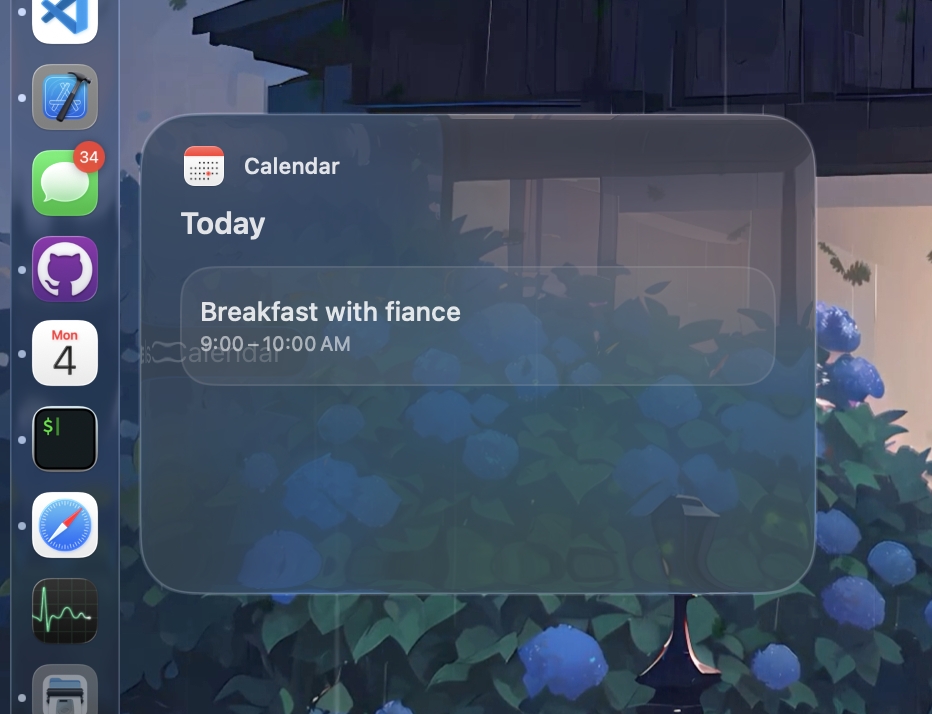
Float over the Calendar app in your Dock to see today's events, join links, and what's next. No window, no distraction — just the right glance at the right time.
Hover Spotify or Apple Music in your Dock for transport controls and synced lyrics. Pin the widget anywhere on screen and let the song follow your work.
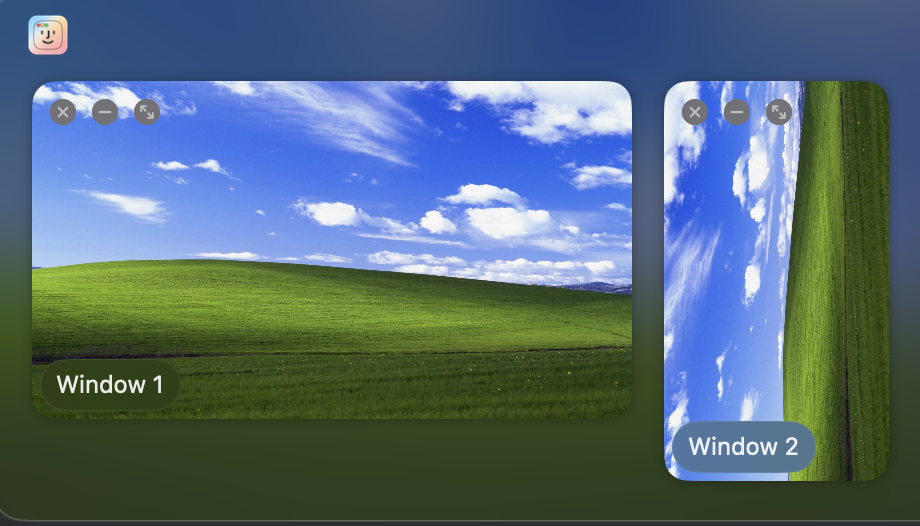
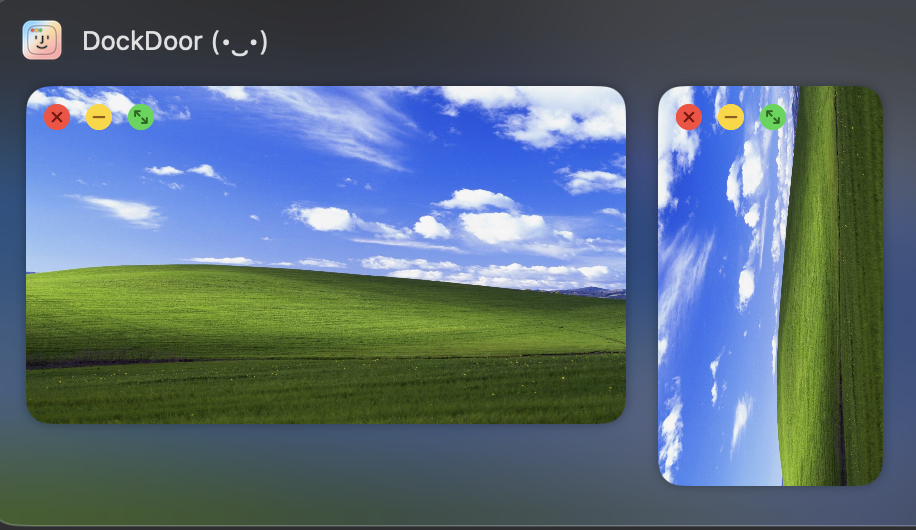
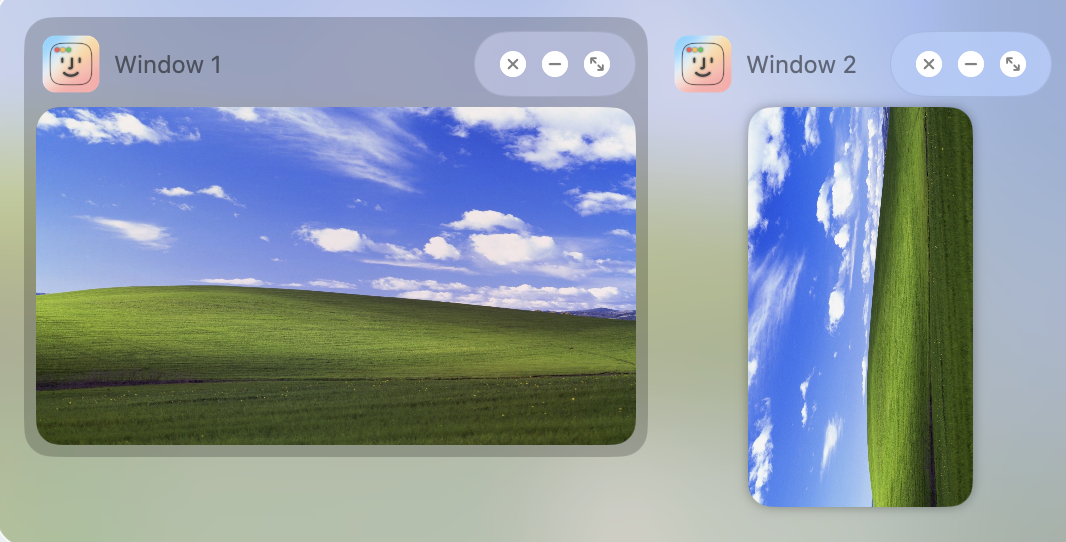
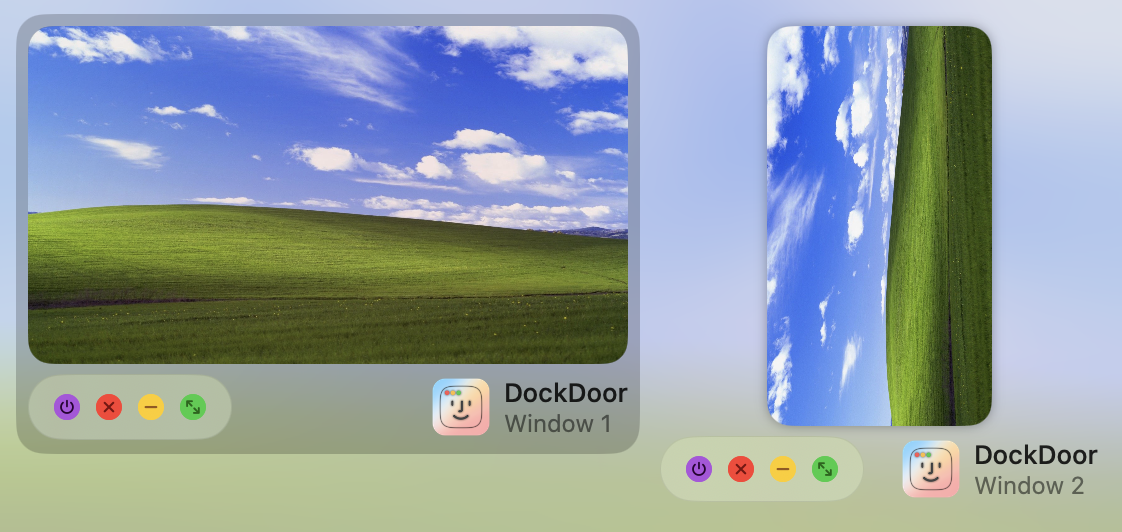
Switch between preview styles for the Dock and the Alt+Tab switcher. Tune spacing, sizing, and traffic-light styling to taste.
Slim toolbar, large gallery, or compact list — chosen automatically by window count, or pinned.
Pick the look that suits your space — tile grid, horizontal carousel, or vertical list.
Five Settings panels covering everything from gestures to filters.
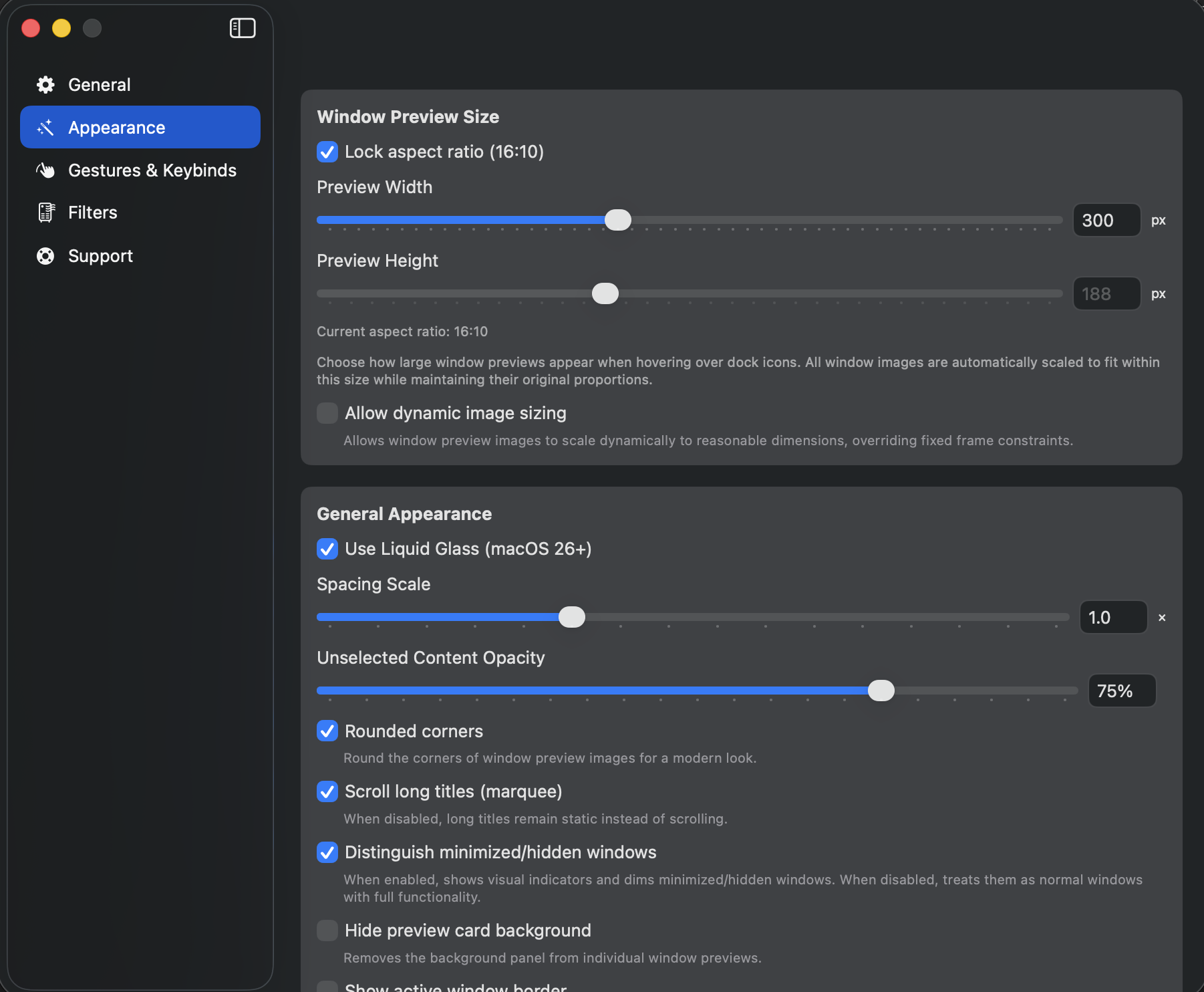
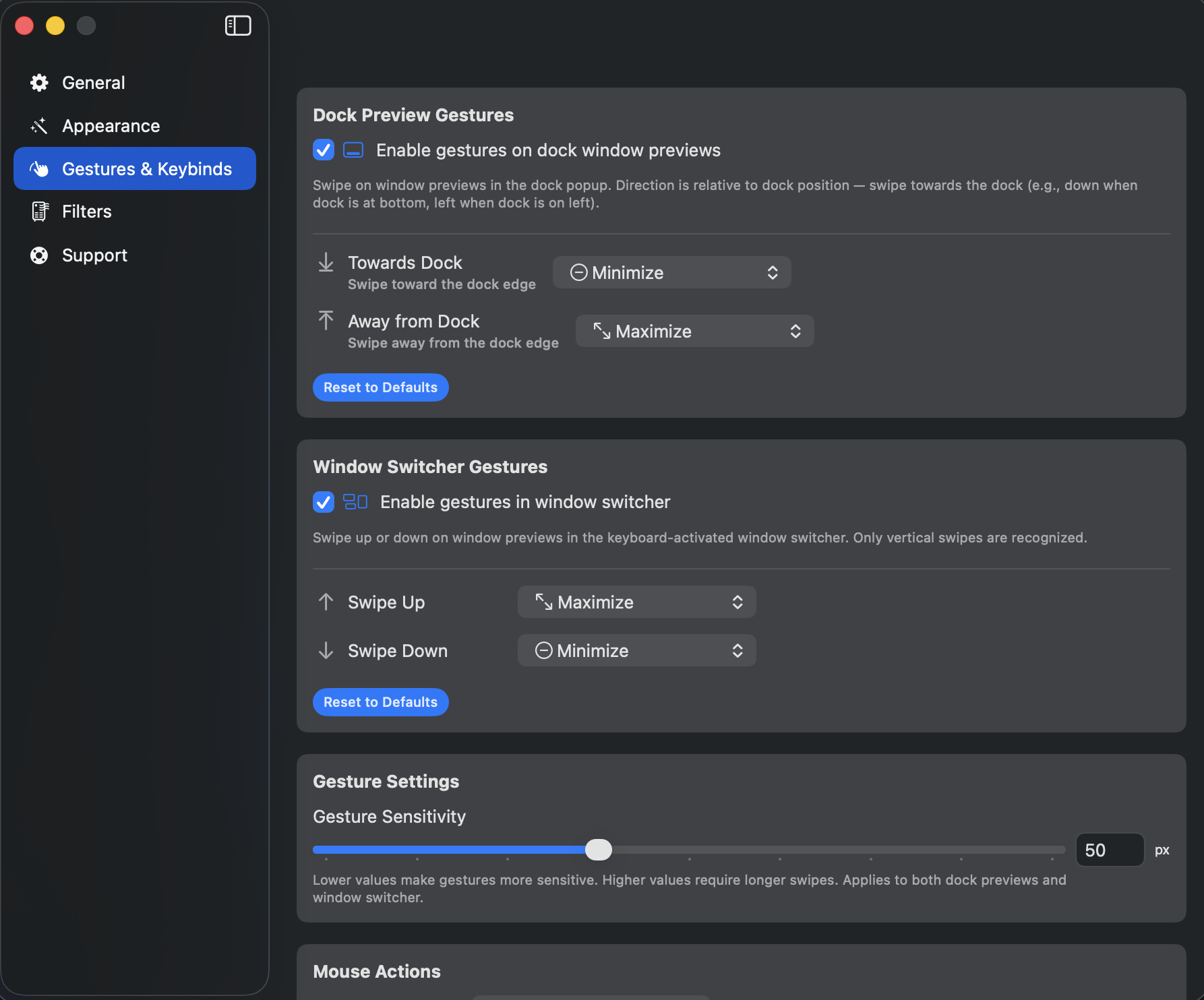
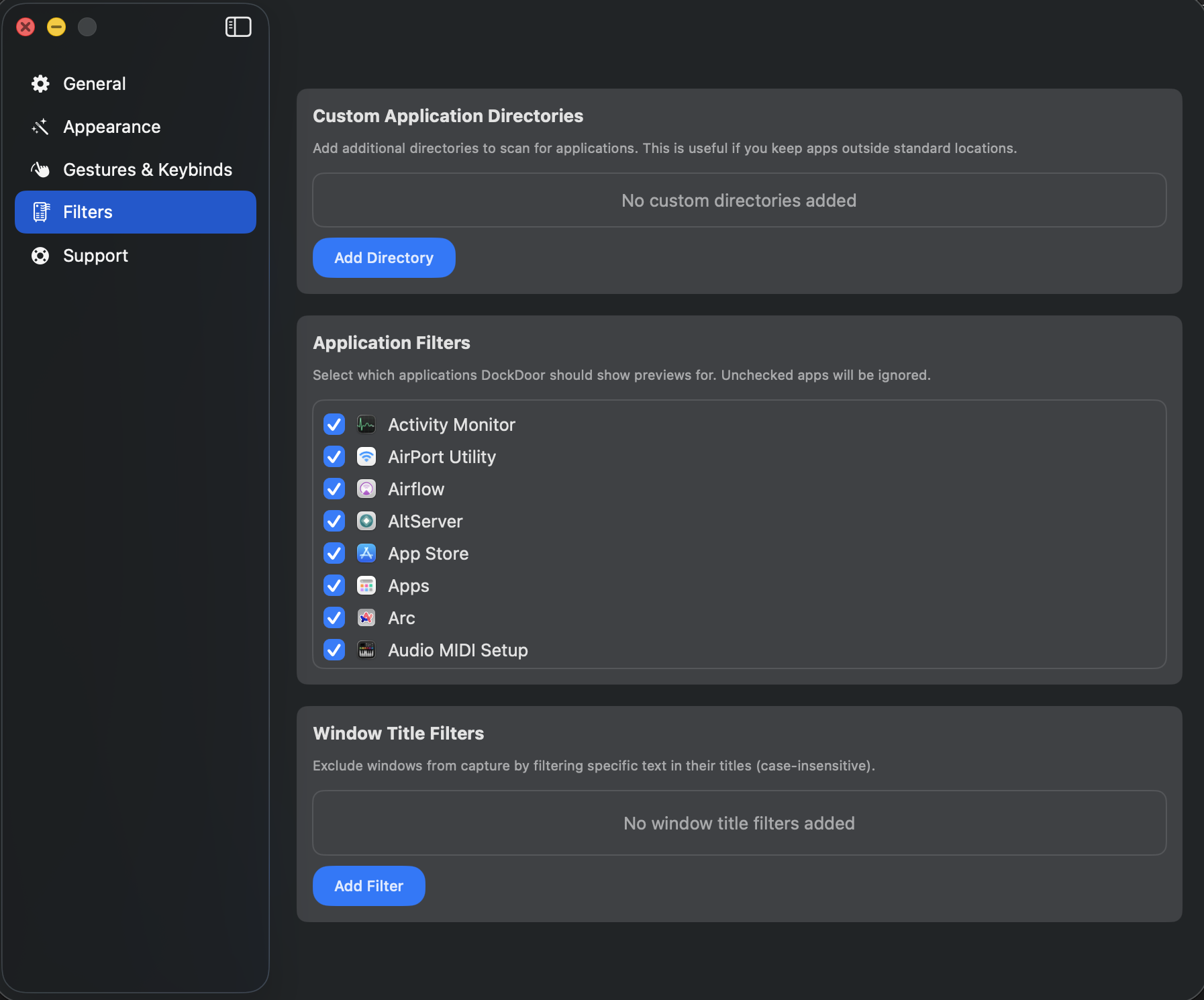
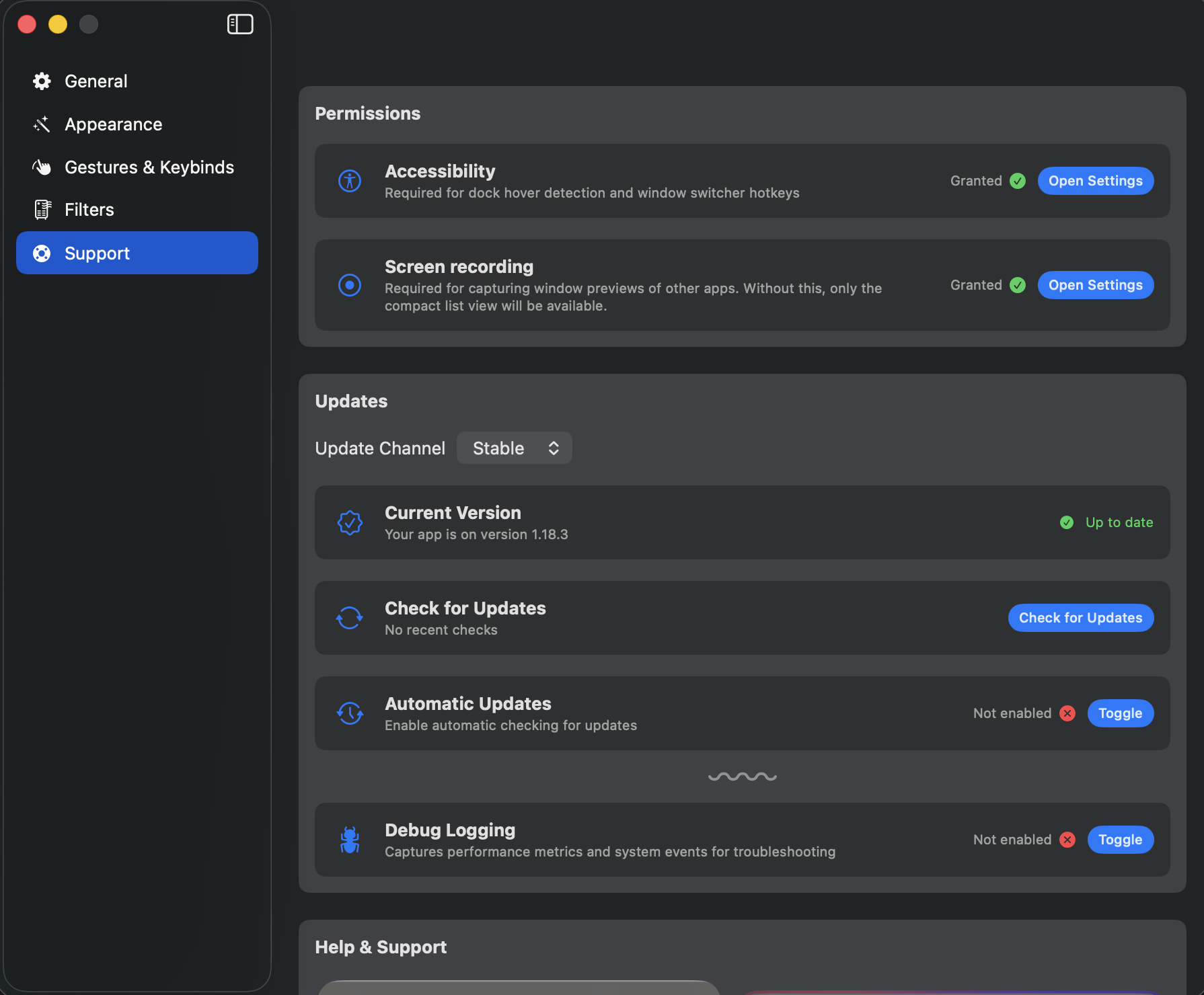
Hover a preview to reveal close, minimize and maximize controls. Middle-click closes. ⌘+right-click quits. ⌘+⌥+right-click force-quits.
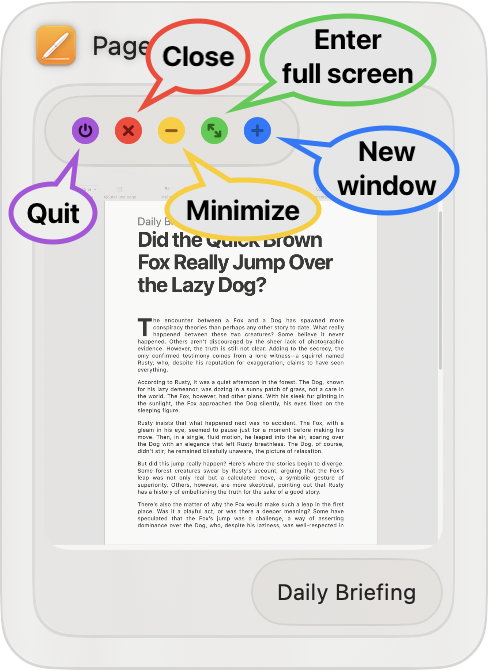
Open the switcher, navigate, act, and dismiss — without lifting your hands.
Open the window switcher
Move through windows
Bring the highlighted window forward
Close, quit, or minimize the window
Dozens of thoughtful interactions that make using your Mac feel faster.
Tidy up windows without switching focus. One click, gone.
⌘+right-click to quit. Add ⌥ to force quit stubborn apps.
Pull a preview into another app to move work between contexts.
Shake a window preview to dismiss everything else.
Two-finger swipes minimize, maximize, or send to the side.
Scroll up on an icon to surface its windows. Scroll down to hide them.
Tame a noisy app with one click from its preview tray.
Make Dock-icon clicks instantly tuck all the app's windows away.
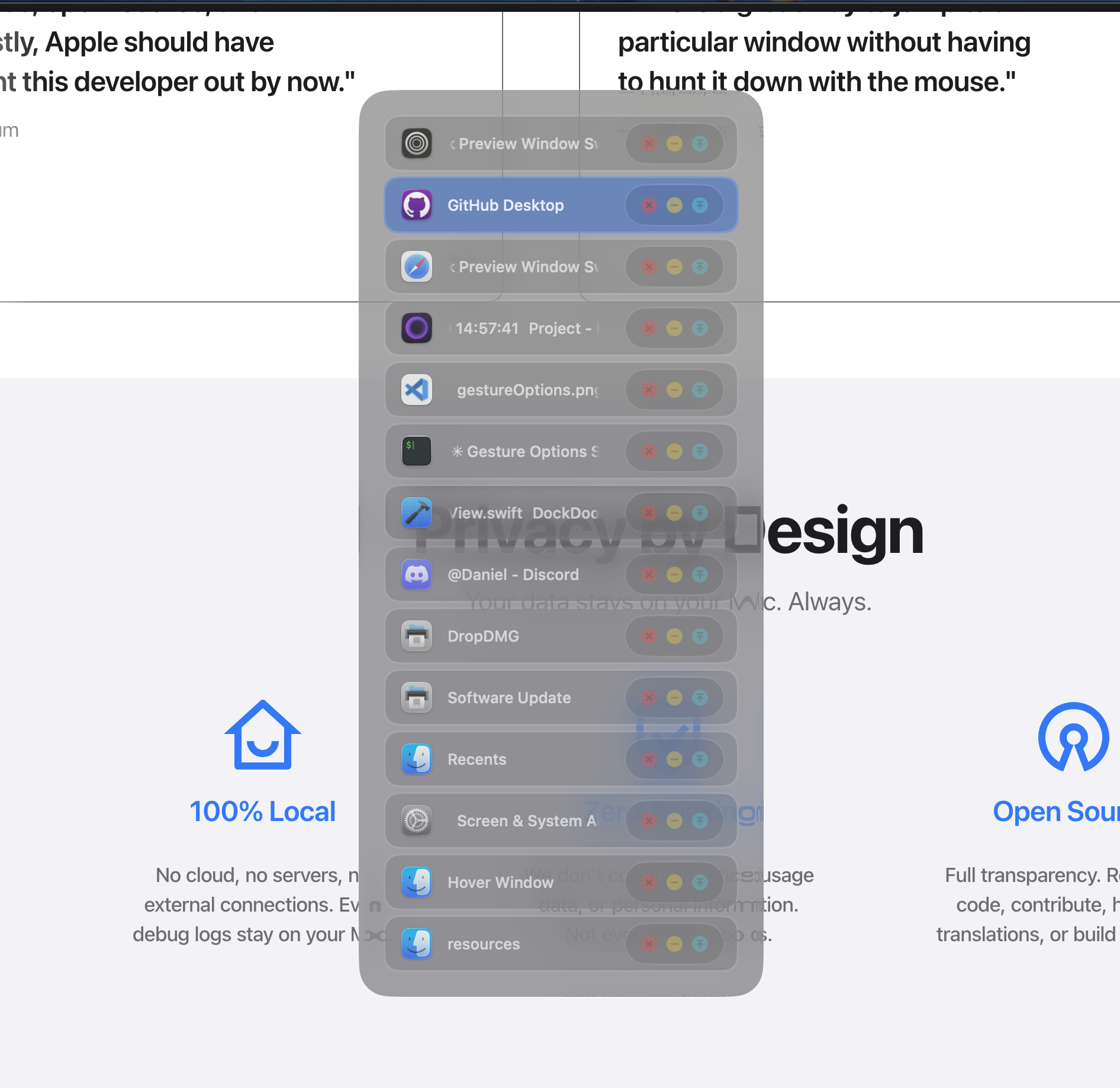
Switch to a tight vertical list when many windows are open.
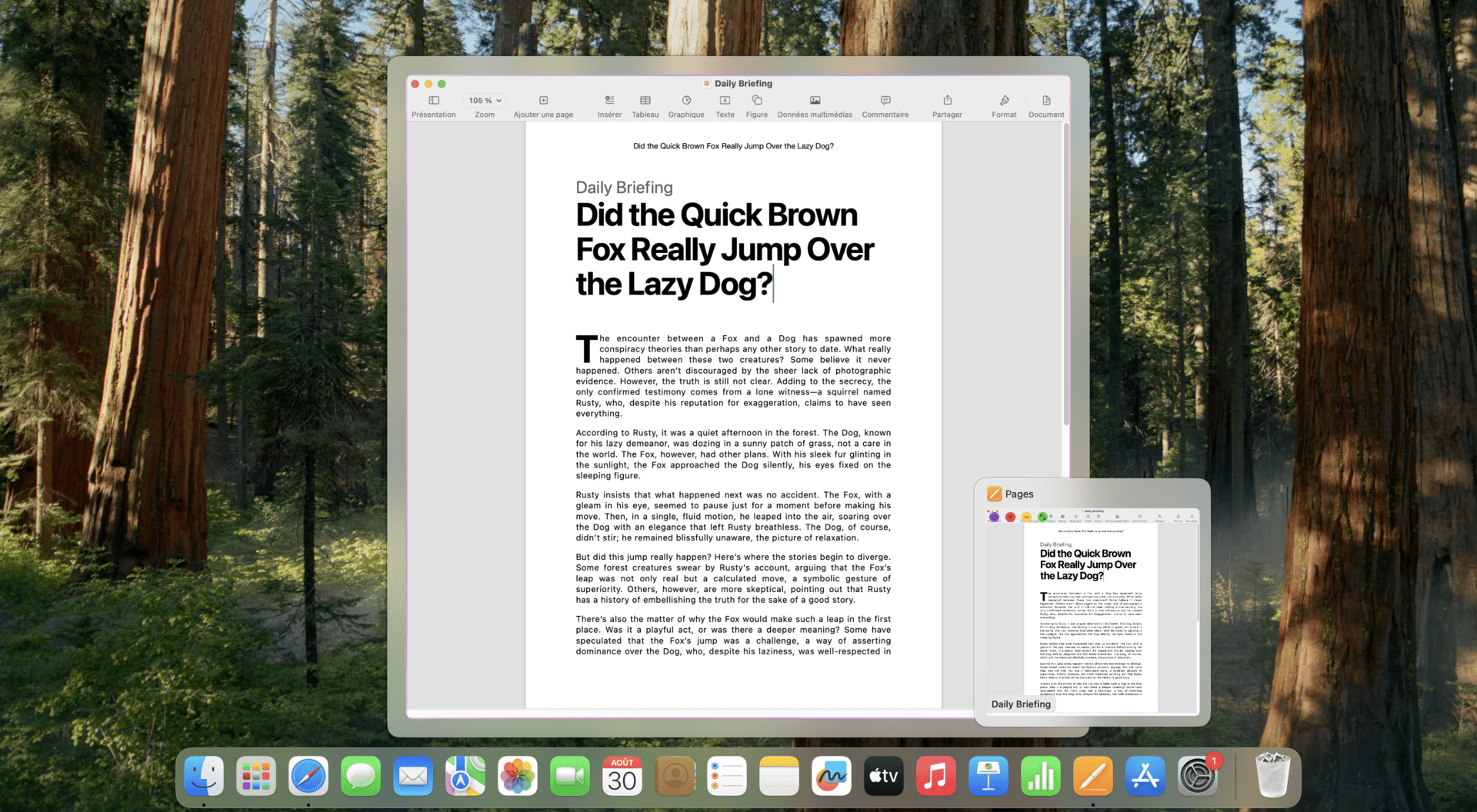
Bigger thumbnails for telling similar windows apart at a glance.
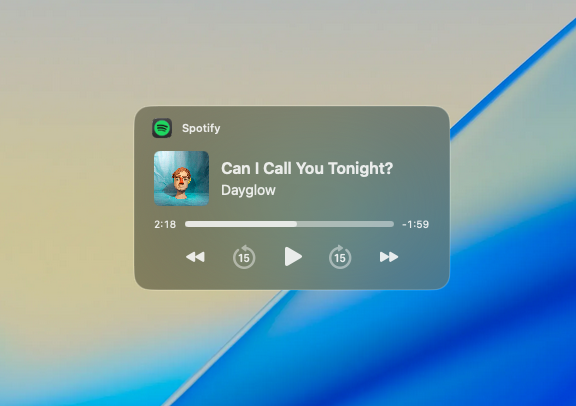
Detach a hover preview and pin it anywhere on screen.
Drag a window over an edge-anchored Dock to tile it cleanly.
Add AwesomeDock‑managed folders right to the system Dock — click one for an inline grid of apps and live window previews.
Drop blank spacer tiles into the macOS Dock straight from the menu bar — small or large, no Terminal commands.
No analytics. No telemetry. No cloud sync. Not even crash reports unless you opt in and export them yourself.
Everything runs on‑device. Debug logs stay on‑device too — you decide if and when to share them.
No identifiers, no usage pings, no third‑party SDKs. The app never phones home.
MIT-licensed on GitHub. Inspect, audit, fork, or build it yourself.
Universal binary for Apple Silicon and Intel. macOS 13 Ventura or later.

Only download AwesomeDock from awesomedock.noinnion.com or the official GitHub repository. Other sites offering AwesomeDock downloads are not affiliated with us and should not be trusted.
We've seen re-uploaded copies on sketchy sites that may contain malware or unauthorized modifications.
Yes — completely free, completely open source, no subscriptions.
macOS 13 Ventura or later. Runs natively on Apple Silicon (M-series) and Intel Macs.
AwesomeDock is designed to be lightweight and idles at near-zero CPU. We continuously profile and ship performance fixes — you'll find them in every release.
Open Settings → General → Show Advanced Settings to set your shortcuts for the switcher and dock peek.
Almost every native and Electron-based macOS app works out of the box. A handful of apps with custom rendering may have limited preview support; you can hide them per-app in Settings → Filters.
In version 1.21+ you can restore the classic look:
These settings only affect Dock previews. The window switcher is unaffected.
Logs stay local until you choose to share them.
Report issues, send a pull request, or help with translations on Crowdin.
AwesomeDock is an open-source project shipped by independent developers and shaped by people like you.


